PluralBuddy Express
Learn how to create user-proxies attached to your PluralBuddy alters.
PluralBuddy Express is a solution that allows alters in your PluralBuddy system proxy outside of environments that aren't servers.
Feature Comparison
| Feature | Bot | Express |
|---|---|---|
| Get Message Info | ✅ | ✅ |
| Edit/Delete Messages | ✅ | ⚠️¹ |
| Modify system settings with commands | ✅ | ❌ |
| Auto-resolve emojis | ✅ | ✅ |
| Proxy in DMs | ❌ | ✅ |
| Proxy in any server² | ❌ | ✅ |
| --- | ||
| Requires a Discord application | ❌ | ✅ |
| Must be added to server | ✅ | ❌ |
¹: You can only edit/delete Express messages if the Express application is added to the server that was proxying due to Discord limitations.
²: You can only proxy in servers where you have the Use External Applications permission.
Summary
PluralBuddy Express is a feature of PluralBuddy that requires you to create a Discord application, that you add to your user account as an OAuth Application, which created commands you can use anywhere.
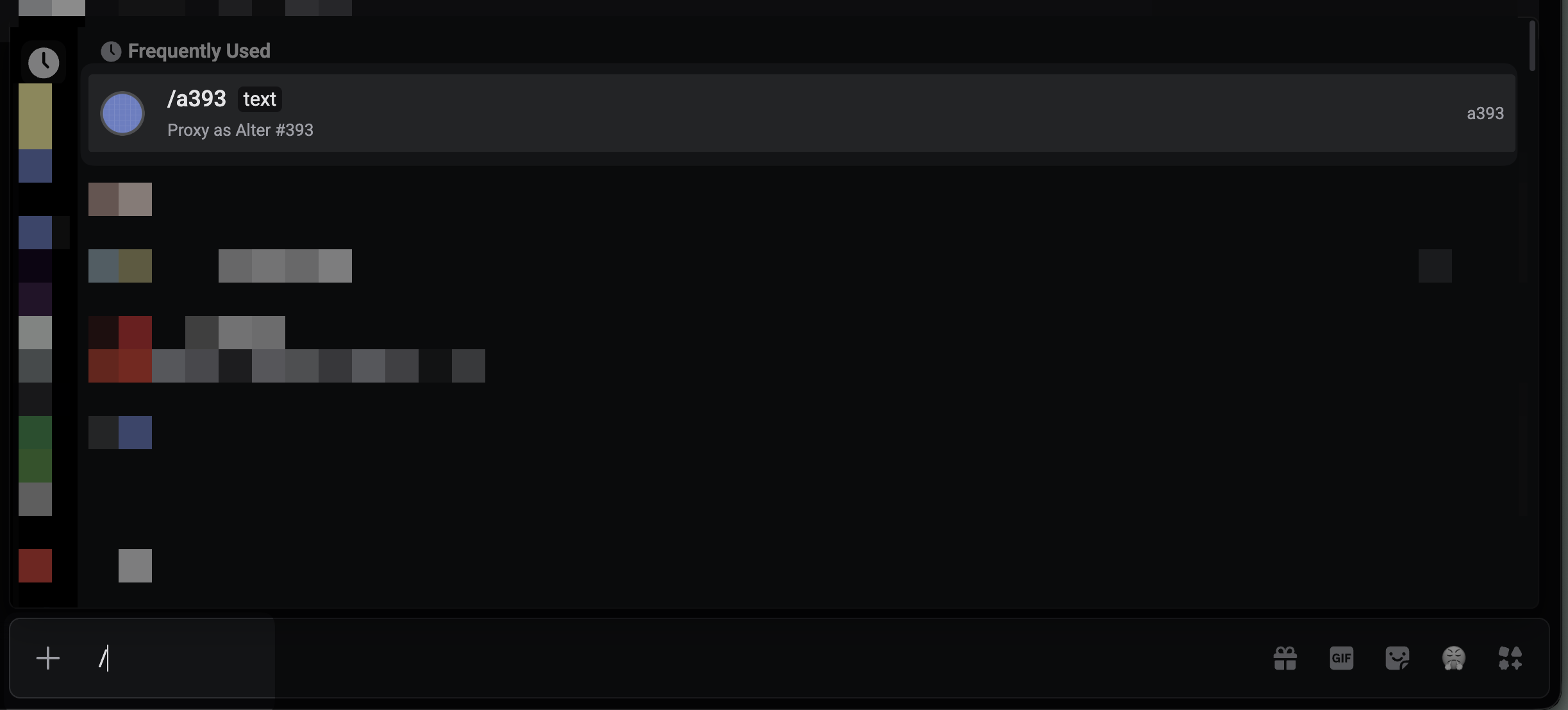
These commands run with the syntax as /<alter-name>. You then put the text you want to type into the text argument, and it completes the command interaction with the output being the text that you put into the command.
Get Started
- Use the
pb;express <alter-name>command and open the page in the dashboard. - Go to the Discord Developer Portal, and create an application

- Go to Bot -> Reset Token, and put in your authentication token
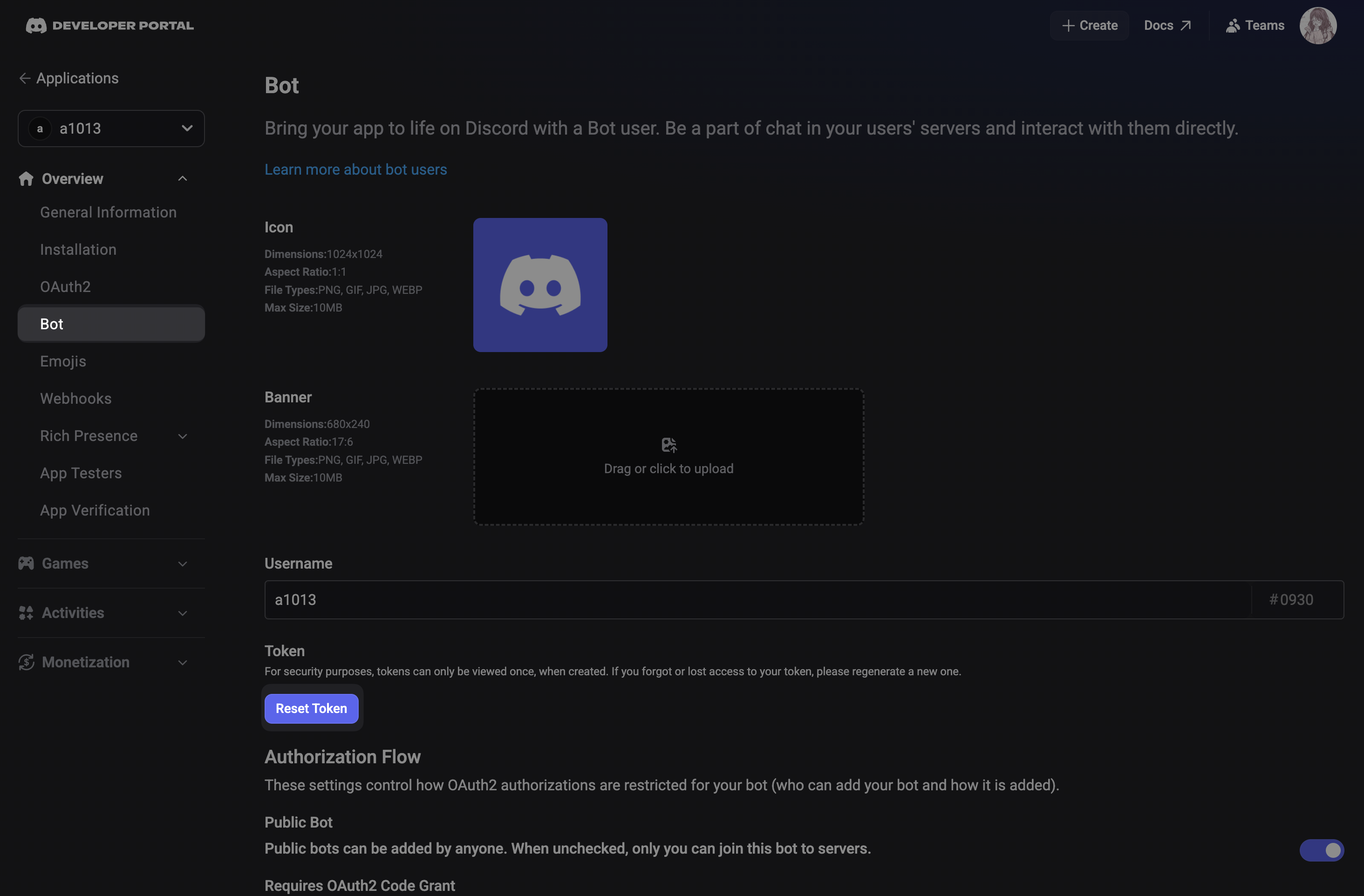
- Copy the token, go back to the PluralBuddy dashboard
- Paste the token in the token input box, and hit "Next"
- Hit the Authorize button, and add it to your User Profile
- Done! You can now proxy your alter anywhere!
Usage
Use the slash command that is the username of your alter (extracted of Unicode symbols, shortened to 30 characters) to send a normal message. You can send text or an attachment, and they will be combined and sent in a message. You must use a slash command every time you want to proxy due to Discord restrictions.
Additionally, you can reply to messages by hitting App -> Your Alter Name -> Reply after holding down or right clicking a message. Then, you can input the message contents and attachments.
Preferences
In the PluralBuddy settings, you can actually set some of the preferences for Express alters that run.
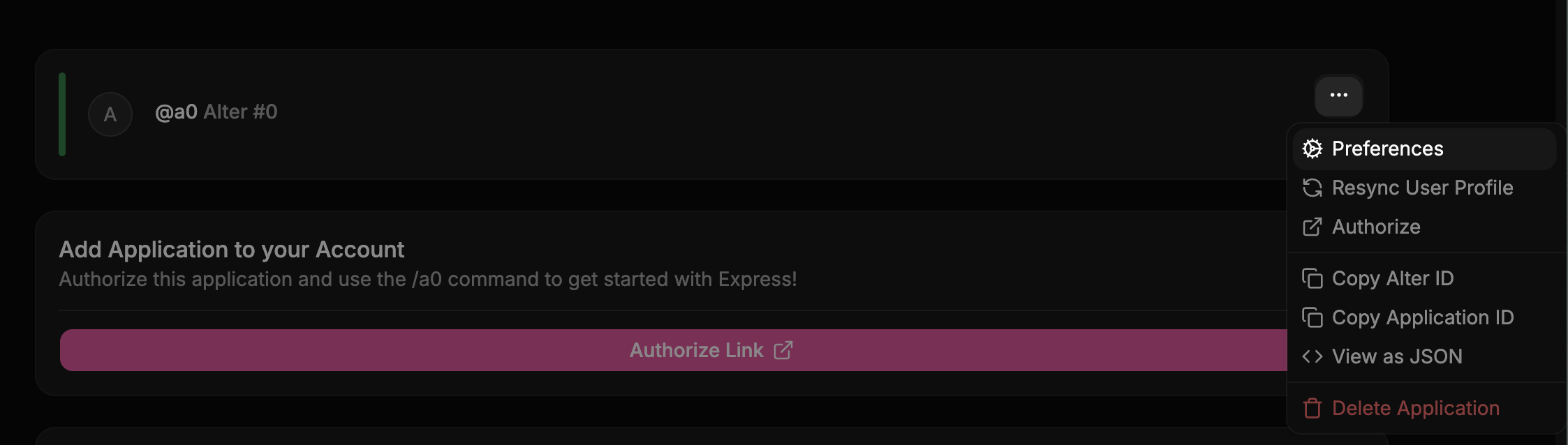
Express has two different modes that you can choose from to format external messages:
- Container Mode: all messages will be inside of a Components V2 Container (most similar in appearance to an embed from Components V1), accented with your alter's color.
- Text Display Mode: the default mode, sending all contents of your message in a Components V2 Text Display (most similar in appearance to default server-based behavior)
You can also set a custom name for your alter. By default, your alter's Express name is the first 30 characters of your alter's display name. However, if you have lots of extra characters you do not want in your alter name, you can shorten it with this option.
How is this guide?